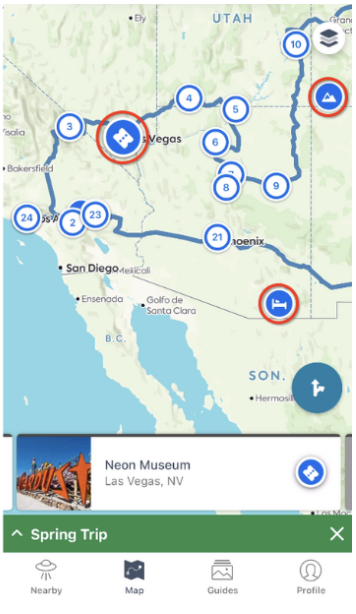
With unrouted waypoints, you can create trips full of suggestions, collections, or optional places for your epic trips!
This feature can be used in a variety of ways: organizing places you've visited, storing places for an upcoming trip, adding seasonally closed road waypoints, ferry travel, or creating a list of options in a certain area. This can be handy when deciding which places are truly worth visiting when you’re on your trip.
Unrouted waypoints are also helpful when there are places you might want to visit but don’t need to include in your driving directions. For example, if you’ve already arrived in New York City and plan to explore on foot, you may want to hide some stops from the route so they don’t affect your time or gas estimates.
- Open your trip itinerary.
- Click the eye icon on the right side of a waypoint card to hide it from the route (also known as “unrouting”).
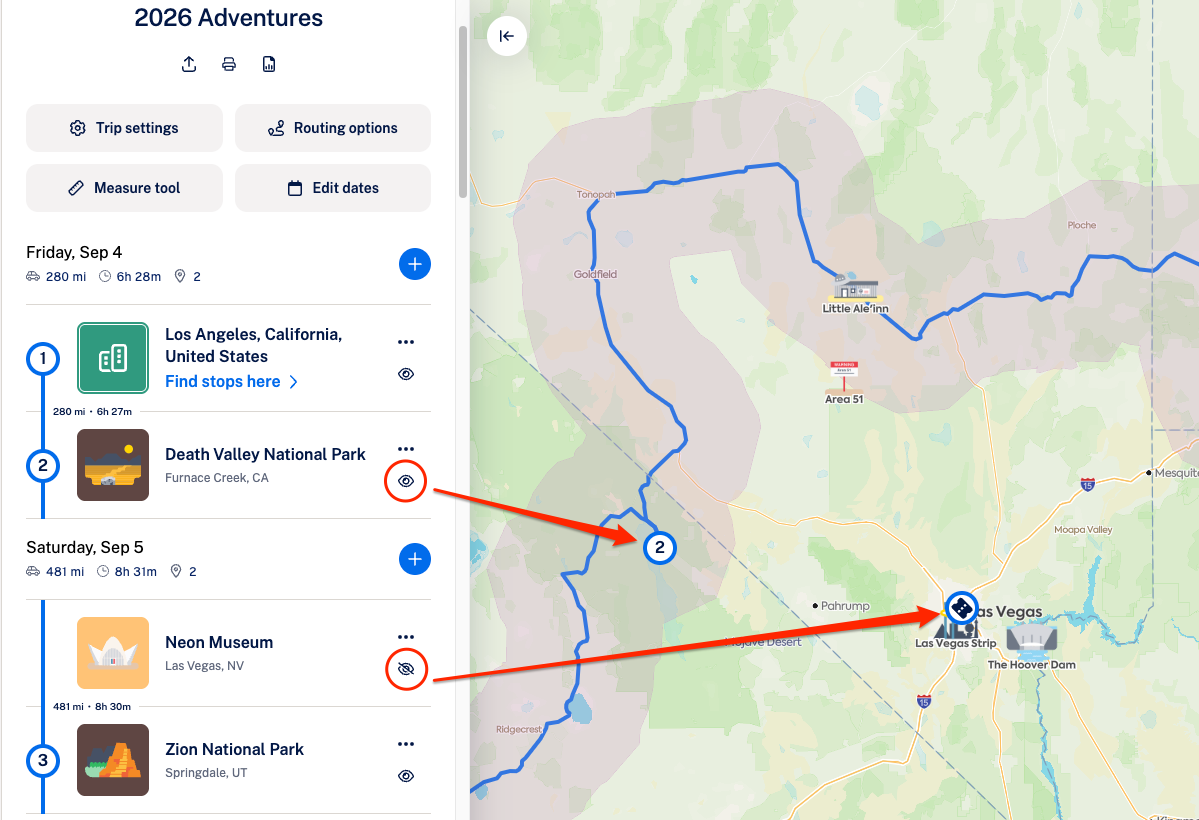
- Once you remove a waypoint from the route, your trip route will immediately update to go directly to the next routed stop. The unrouted waypoint will stay in your itinerary, so you can easily add it back to the route at any time or simply keep it as a reminder during your trip.
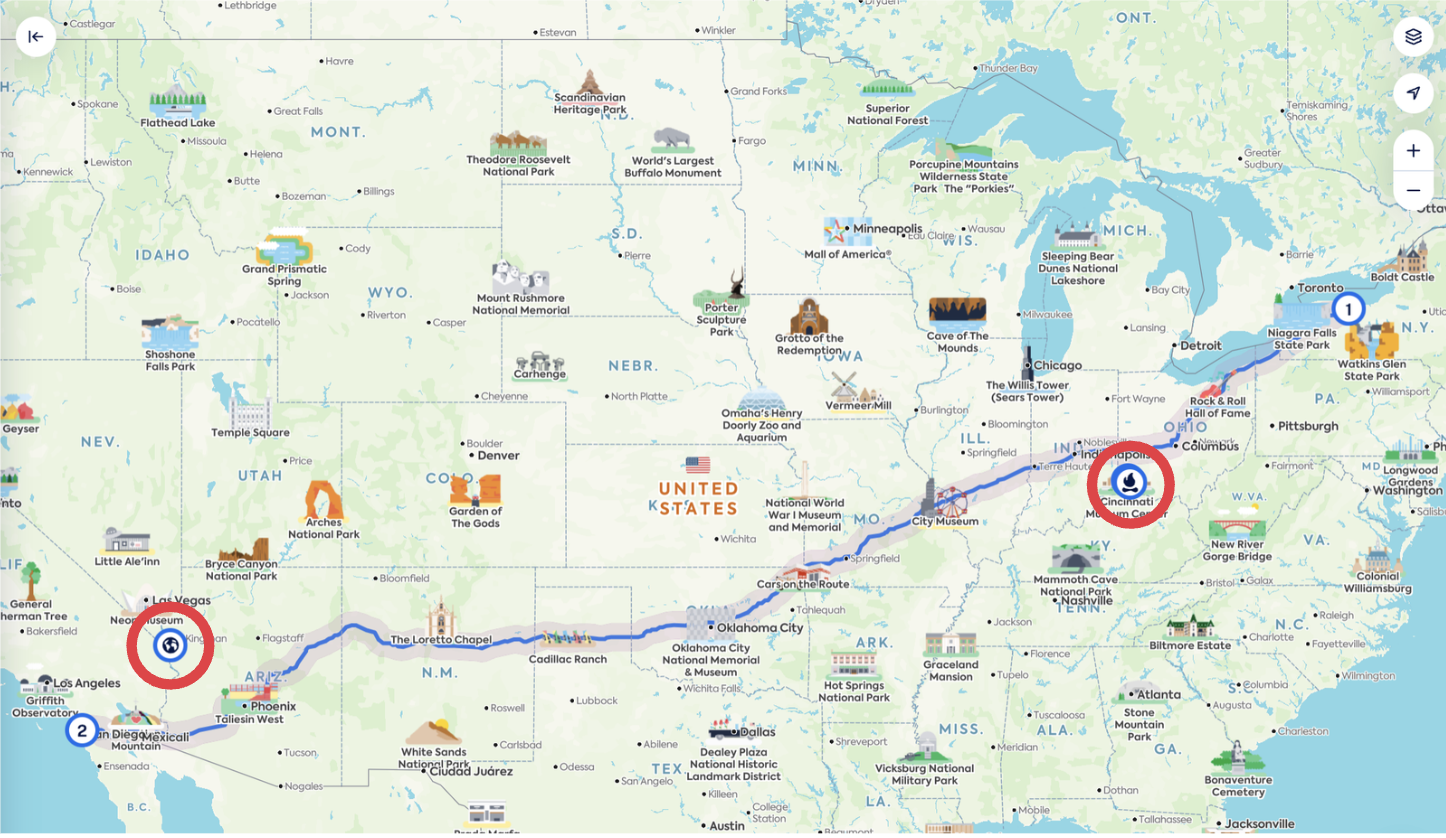
The eye is the easiest way to toggle stops on/off the route, but you can also do this by clicking the 3 dots to the right of a waypoint in your itinerary and selecting Exclude From or Include On Route, or by opening the edit waypoint details window and checking or unchecking the Exclude From Route checkbox.
- Open your trip itinerary.
- Click the down arrow (caret) to expand the waypoint card.
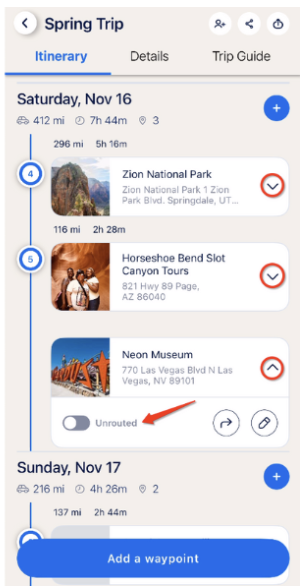
- Toggle Unrouted on (or off).
- After unrouting a waypoint from the route, your trip route will immediately update on the map to travel directly to the next routed waypoint. The unrouted waypoint will remain in your itinerary so you can easily add it back to the route later, or use it as a reminder while on your trip!